In this article, we will walk you through the Inventory Module in MeasureSquare CRM. The Inventory Module allows you to track stock levels across locations, record material movements, manage transfers between warehouses, and tie every transaction back to a specific project for accurate job costing.
This module is currently in Beta — it is live and ready to use, and actively being improved based on user feedback.
Enabling the Inventory Module
Step 1: Click on Settings in the top navigation bar.
Step 2: Select Modules. You will see a list of all available modules — CRM, Inventory, and Calendar.
Step 3: Find the Inventory row and switch on the toggle
Once enabled, the Inventory tab will appear in the top navigation bar for everyone in your organization.
Importing Your Inventory List from Excel
If you are just getting started, the fastest way to load your products is to import an Excel file. Instead of creating items one by one, you can bring everything in at once.
Step 1: Open the Inventory module. This is your central hub where every product you are tracking will be displayed.
Step 2: Click on Inventory
Step 3: Click on 'Import from file'
Step 4: Download the sample spreadsheet and match the formatting here with your data.
Step 5: Drag your Excel file here or click to import your file manually. All your products will appear in the inventory list immediately.
Step 6: Click into any product from the inventory list to open its Product Detail page.
At the top of the page you will see the product's general information. Below the product details, you will find four tabs:
Stock Levels — Shows current stock broken down by locationDye Lot/Batch # — Track dye lot or batch numbers for materials where color matching mattersRolls — View individual roll-level detail for roll-tracked products.Stock Logs — The complete audit trail of every movement for this product — who made the change, when, what type, and whyThe Dye Lot/Batch # and Rolls tabs only appear for roll-type products. Non-roll type products will only show Stock Levels and Stock Logs.
Getting Items Into Inventory
There are two ways to get items into your stock counts. Both methods work together.
Method 1: Enable "Track Inventory" in the Products Module
Step 1: Go to the CRM menu and click on Products in the left sidebar.
Step 2: Click on any product to open its detail panel on the right side of the screen.
Step 3: Scroll down until you find the Inventory section. Check the box Track Inventory.
Once enabled, the CRM will begin monitoring stock levels for that product. Any movement — in or out — will be recorded going forward.
 Tip: You need to enable Track Inventory on each product individually. If a product does not have this checked, it will not appear in your Inventory module.
Method 2: Stock In Directly from a Purchase Order
Step 1: Open any Purchase Order and click on the Delivery tab in the right-side panel
Step 2: If the item is not in your Inventory yet, you will see a "!" tooltip. Click on Create
Step 3: Fill in the fields and select OK to add this item to your Inventory
Step 4: You will see the list of ordered items and how much has been received so far. When your delivery arrives, click Stock In
Step 5: Fill in the required details such as Location & Date.
For roll-type products, click the roll icon button next to the Adjust Quantity field. This opens the Add Roll dialog, where you can enter individual roll details: Roll #, Dye Lot #, Bin Location, and Quantity.
Step 6: Once all quantities are entered, click OK
Recording Stock In and Stock Out
This is where most of your daily inventory activity will take place. Every time materials come in or go out, you log it using an Inventory Adjustment.
Step 1: From the main Inventory screen, click Inventory Adjustment
Step 2: Select New Inventory Adjustment
Step 3: Fill in the required details.
Select your Location — this tells the system which warehouse or office the adjustment applies to.
Choose the Type:
- Stock In — when materials arrive
- Stock Out — when materials are used on a job, damaged, or returned
- Reason — why the adjustment is being made
- Project — the job this adjustment is tied to
- Reference — a PO number, packing slip, or other tracking reference
Step 4: Add your item, enter the quantity, and confirm then Save. Your stock updates instantly.
In the Inventory Adjustment screen, you can click on each adjustment, and the system automatically logs who made the change, when it happened, and why.
Moving Materials Between Locations
If materials need to move from one location to another — such as pulling stock from a warehouse to an office for a job — use the Transfer feature instead of manually adjusting both locations separately.
Step 1: Click Transfer from the Inventory menu.
Step 2: Select New Transfer
Step 3: Fill in the required fields. Select the source location (where the material is coming from) and the destination location (where it is going).
Link the transfer to a Project if it is for a specific job, and add any notes as needed.
Step 4: Add the item and quantity, then Save. The system automatically deducts from the source location and adds to the destination — both update at the same time.
Pick Tickets
A Pick Ticket is a fulfillment checklist for your warehouse team. When a job needs materials pulled, you create a pick ticket that tells your team exactly what to grab, how much, and for which project.
Step 1: In the left sidebar of the Inventory module, click on Pick Tickets.
Step 2: Select New Pick Ticket
Step 3: Fill in the Pick Ticket Information form
Location — Select the warehouse or office location where items will be picked from.Project — Select the project this pick ticket is for.Reference — Link to a related Quote or PO number for traceability
Step 4: In the Items section at the bottom of the form, click + Add Line Item to add materials. For each item you will see the Item name, SKU, PO #, Stock on Hand, and Quantity to pick.
Step 5: Once all items are added, click Save. The pick ticket is now created with a Pending status.
Stocking Out from a Pick Ticket
Step 6: Once the materials have been physically pulled, open the pick ticket and click the Stock Out button.
Important: Marking an item as picked on a Pick Ticket does not automatically update your stock count. You must click Stock Out from the pick ticket (or log a separate Stock Out via Inventory Adjustment) to deduct the quantities from your inventory. The Pick Ticket is the plan — the Stock Out is the confirmation. 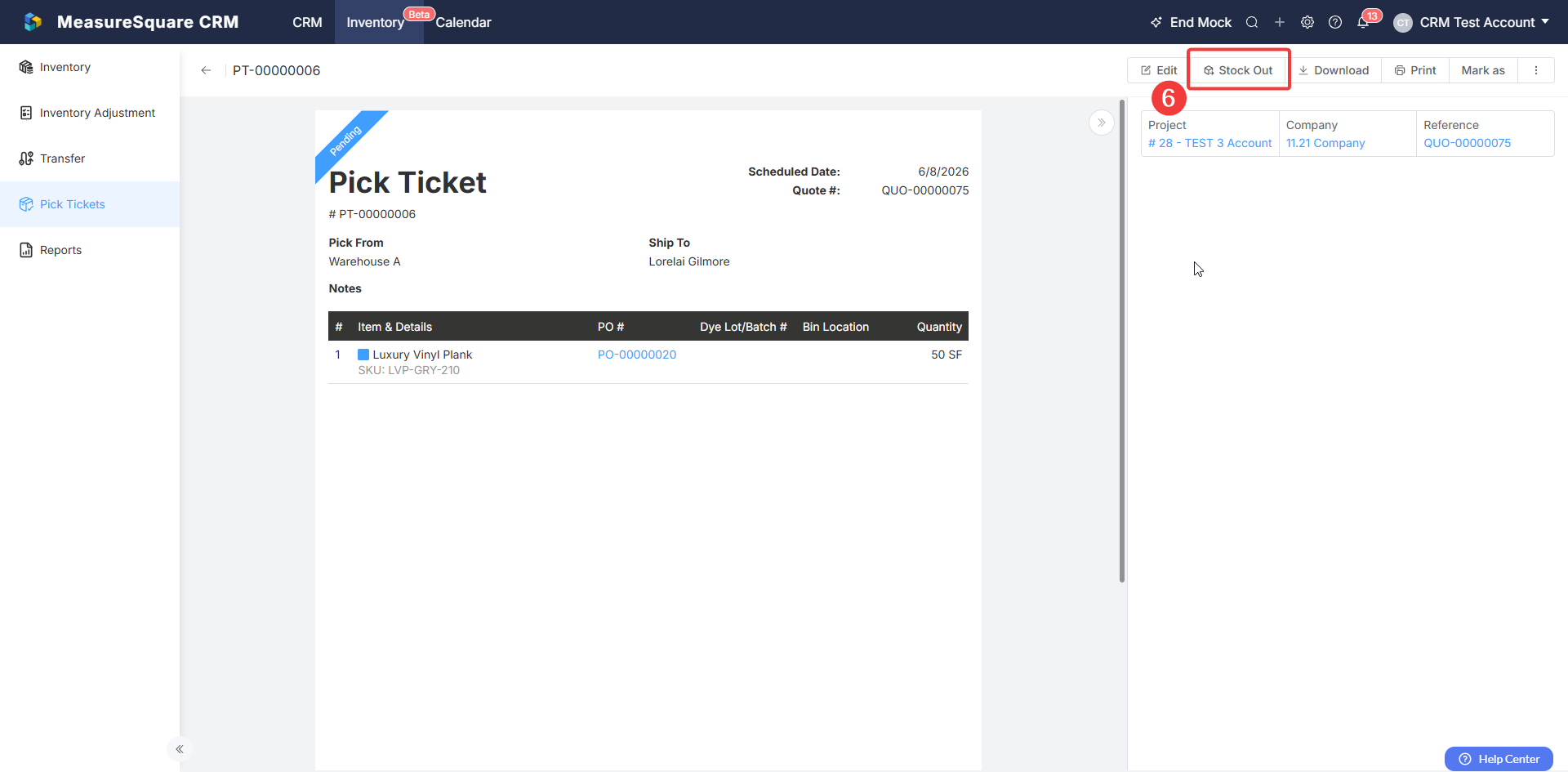
Step 7: This creates an Inventory Adjustment pre-populated with the pick ticket's items. Click OK
This will update the Pick Ticket status to Completed
For any further questions, please reach out to our Support team
Monday – Friday from 7:30am–4:30pm PST: (626) 683-9188 ext. 3
All Hours: support@measuresquare.com