Vein Matching & Slab Layout in MeasureSquare Stone
Vein Matching & Slab Layout in MeasureSquare Stone
Knowledge Base Article | Stone & Tile Desktop
Applies to: Stone (Stone Only) and Stone & Tile | Last reviewed: June 2026
Overview
Vein matching is the process of aligning the directional grain or veining of stone across adjacent pieces so the pattern appears continuous across seams. For book matching, adjacent slabs are mirrored so the veining creates a symmetrical, butterfly-style pattern. Both techniques are native to MeasureSquare Stone and are handled through the Slab Layout module — specifically via the Slab Layout tool.
These workflows are distinct from the automated Slab Optimizer. The Slab Optimizer is designed for production efficiency on large commercial projects. Slab Layout is designed for precision placement where the visual result of the stone matters as much as yield. For vein-match and book-match work, Slab Layout is always the right tool.
Industry Context
Understanding why vein matching is technically demanding helps set the right expectations with customers and explains the workflow choices in MeasureSquare Stone.
Material Types That Require Vein Matching
Waste Expectations
Waste for vein-match and book-match work is substantially higher than standard countertop work. Plan for 50–60% waste — sometimes more. This is not a software limitation; it reflects real-world cutting constraints when pieces must be positioned to align veining.
Slab Layout Workflow: Step by Step
Slab Layout is the manual slab layout tool. It shows one slab at a time and lets the user drag, position, flip, and rotate pieces against the actual slab image to verify visual alignment before cutting.
Step 1 — Complete the Drawing and Apply Product
• Draw all countertop or cladding pieces in the standard layout view.
• Apply the directional product to all relevant pieces.
• Add seams where needed — seam placement is critical for vein continuity. Plan seam locations to fall at natural break points in the vein pattern.
• Tag all pieces appropriately if this is part of a larger project.
Step 2 — Open Slab Layout
Navigate to the Slab Layout module
Add Slab(s) of your material
Fill out your slab details and attach the specific slab image for that product.
Note: This image does not need to be a special type of scan, any image file will work as long as it is taken head on to the slab. If adding more than one slab at a time they will all share the attached image and will need to be updated later.
Step 3 — Place Pieces on the Slab
Left Click and drag pieces from the takeoff onto the slab one at a time. Position each piece so its vein pattern aligns with the adjacent piece.
Use the slab image as the reference. With the actual slab shown on the slab you are able to position the pieces exactly where they need to be cut out of the slab.
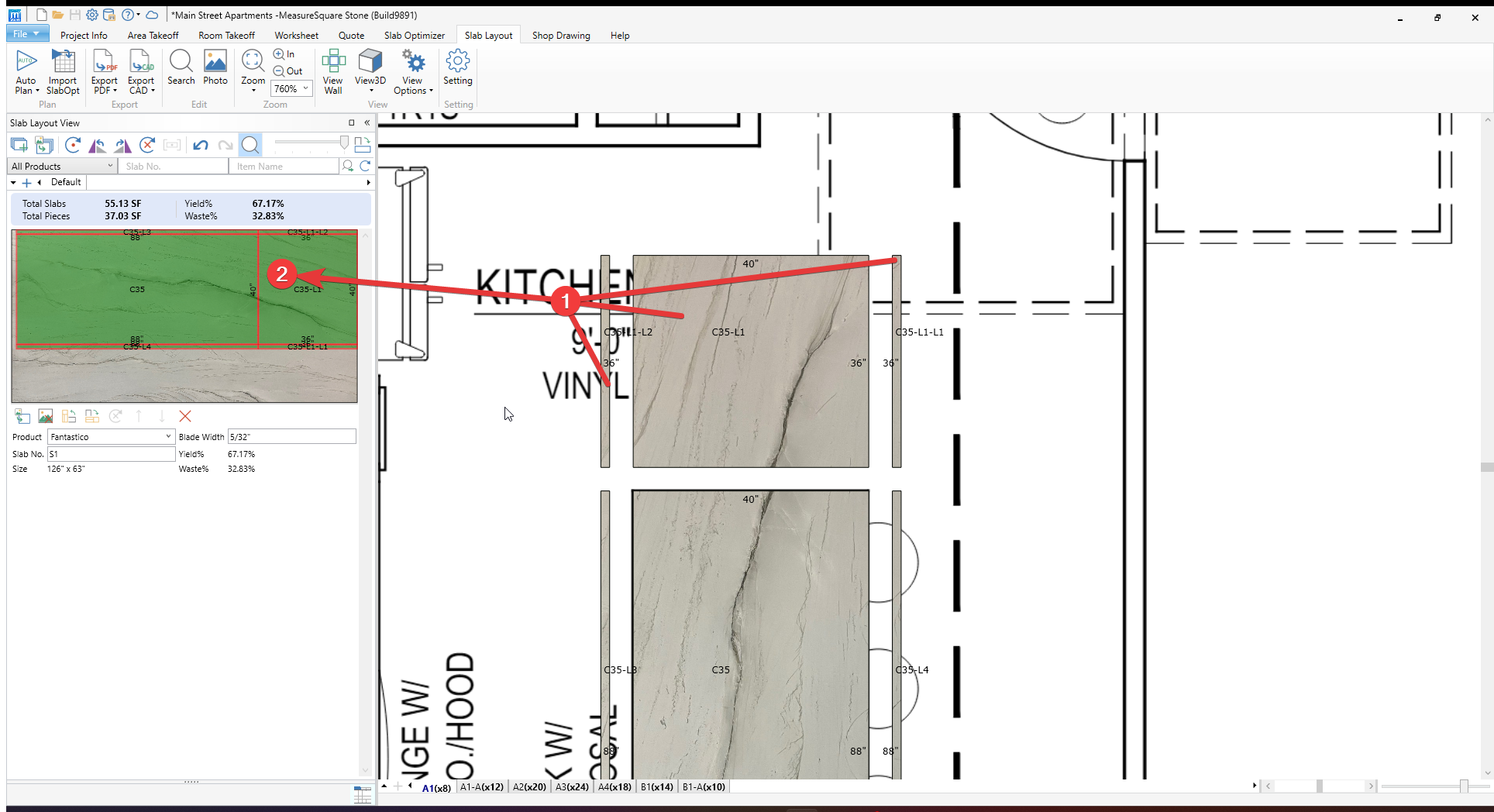
Pieces that overlap or out of bounds are displayed as red — reposition to resolve
Step 4 — Manage Slab Boundaries and Waste
• Pieces that extend beyond the slab boundary are flagged. Either reposition within the slab or add a second slab.
• To add a second slab: use Add Slab within the Slab Layout view. This creates a new slab layout page for the same material.
• For book matching across two slabs: the second slab’s image should be the mirror of the first. Confirm this is reflected in the product configuration or note it for the fabricator.
• Waste is automatically calculated from the unused slab area around placed pieces. Expect 50–60% for vein-match work — this is normal.
Step 5 — Save and Push Results to Worksheet
Once all pieces are placed and alignment is confirmed, save the Slab Layout layout.
In Worksheet Settings [1], select Slab Layout results [2] as the source for slab quantities (not Slab Optimizer results). This is required for the worksheet to reflect the Slab Layout slab count.
Slab quantities now populate the worksheet based on the actual number of slabs used in the layout. If they don’t update right away you may need to use the Reload [3] button.
Common Mistakes and How to Fix Them
Quick Reference