How do I manage my Sub Groups in the Cloud?
In this article, we will show you how to manage your subgroups.
This article applies to MeasureSquare Cloud.
The Subgroup feature in MeasureSquare Cloud is designed for enterprise-level companies with multiple smaller entities operating under the same corporate umbrella. It allows all subscriptions to be centrally managed under a single main group account.
The main group admin has full control over subscriptions and licenses across all subgroups, including the ability to add or reduce subscriptions and licenses as needed.
Each subgroup can independently manage its own licenses and users, providing operational flexibility, while subscription management remains exclusively with the main group admin to ensure centralized billing and governance.
To view your subgroups, log into cloud.measuresquare.com with your MeasureSquare ID (email address) and password, and click on "Sub Groups". All your subgroups will be listed in this tab with the number of subscriptions, licenses and members displayed for each. To add a new subscription for a subgroup, click "Add Subscription".
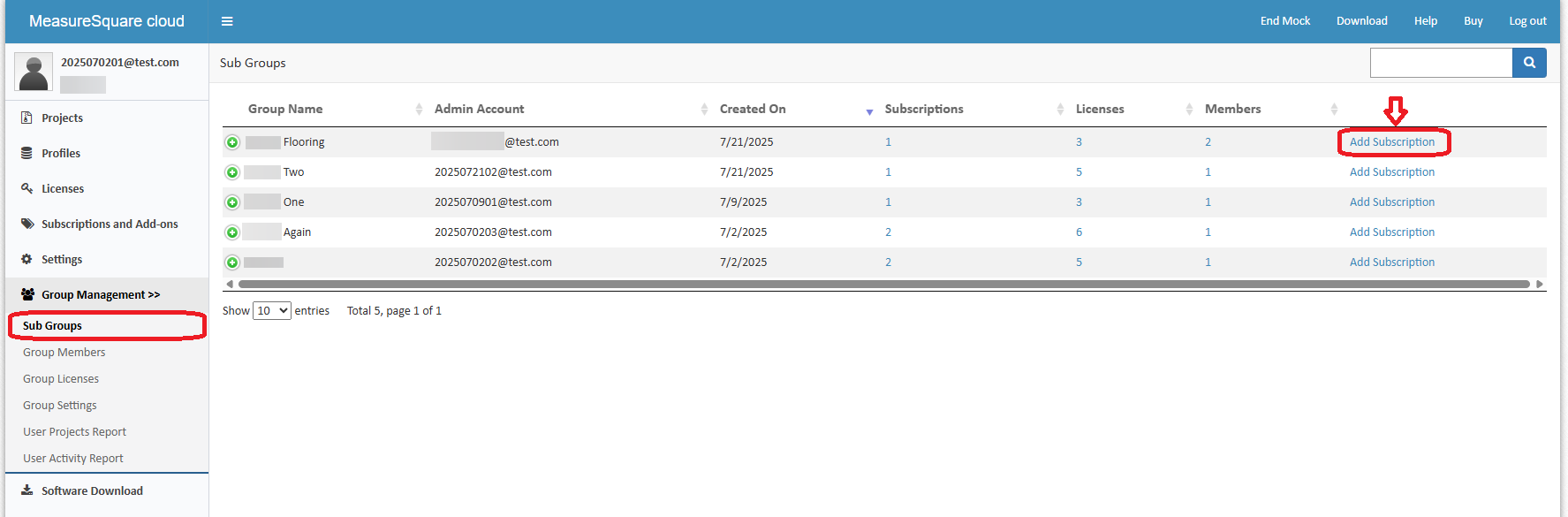
To view the subscriptions under a subgroup, click the hyperlinked number under "Subscriptions" and it will list all purchased subscriptions under the subgroup.
To view the licenses under a subgroup, click the hyperlinked number under "Licenses" and it will show all related licenses under the subgroup. You may "Assign" licenses to same subgroup members accordingly.
To view the members under a subgroup, click the hyperlinked number under "Members" and it will show all members under the subgroup. You may add or remove users here.
To view the invoices under a subgroup, click on "Subscriptions and Add-ons" and it will show all subscriptions under the main group. Locate the subgroup you would like to review and click on "View Invoices". It will show all the payment history for this subgroup and a pdf version of invoice is available to download for each payment.