MeasureSquare Stone Print Settings Glossary
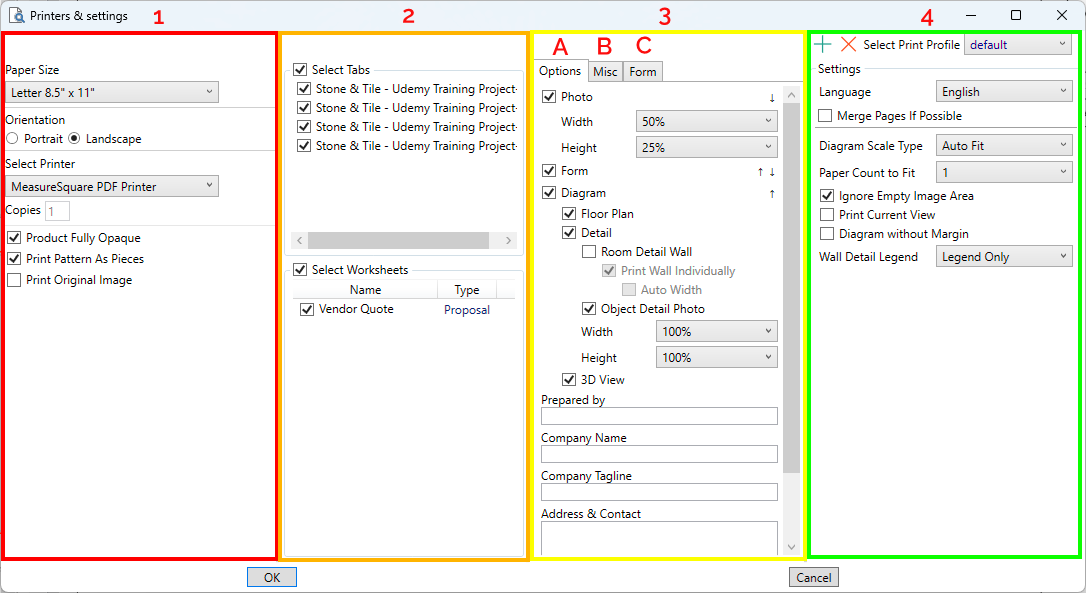
Column 1
Paper Size: Selection can be influenced by selected printer. Paper size has a large impact on final result
Orientation: Display longways or short ways
Select Printer: We recommend MeasureSquare PDF Printer. You can also select a machine to print to directly. Other PDF Printers are available like Microsoft and Adobe
Copies: Print multiple, available only when a Printer device has been selected instead of a PDF printer
Product fully Opaque: Increases the visibility of products in the printout. Makes it harder to see any images in areas where products are applied
Print Pattern As Pieces: Influences image quality of patterns. Requires more resources but generates greater detail. May not change quality in every situation
Print Original Image: Allows for larger file sizes. Toggle this on if you need the highest degree of image clarity
Column 2
Select Tabs: Choose to display information pertaining to specific tabs from the takeoff
Select Worksheets: Choose to include or remove worksheet quotes, proposals, and invoices individually or all-together
Column 3a Options
Photo: Display all photos captured and attached to the project photo database
Form: Display Worksheets
Diagram: Display Diagram controls
Floor Plan - Include PDF
Detail - Display room walls, or room photos
3D view - Show your last viewed 3D orientation for each tab
Company and estimator information: Fill out these fields to have them included in your header
Column 3b Misc
Font Size: Controls font size for Header and Forms
Show Header: Displays Page numbers and project title
Show Advanced Header - Adds Company Logo, Company Name, Company Address, Estimator Name, and Date and Time
Header on Left - Displays the Header vertically and on the left side
Icon in Legend: For Wall details, shows product color box and allows for size adjustments
Product size in Legend: Displays product dimensions, does not apply to cut-to-size slabs
Unit in Legend: Displays Measurement unit (SF, LF, etc.)
Description in Legend: Displays the description for any product that has their description filled out
Column 3c Form
For Worksheet Documents
Bill-to/Ship-to: Shows Billing and Shipping information
Subitem Details: Shows data for add-on products in their respective columns
Total Summary: Displays grand total
Total Summary Details - opens display for tax and labor totals
Labor Total - combines and displays Labor Total
Tax - Displays total taxes
Signature: Displays signature captured from Stone Program
Column 4 settings
Language: Choose native language for forms
Merge Pages if Possible: Helps to prevent empty space
Diagram Scale Type: Choose how to display your diagram
Auto, Horizontal, Vertical Fit - Aligns the diagram to the selected paper size
Paper count to fit - Choose to increase the zoom level by splitting the diagram over up to 3 separate pages per tab
By Zoom - Manually increase or decrease zoom level
By Print scale - Use plan scale to print a scaled takeoff
Ignore empty image area: Displays only drawn areas, cutting out imported image zones without areas or rooms
Print Current view: Use the last manual zoom level from the takeoff to display your tabs
Diagram without margin: Toggle Margin on or off for diagrams
Wall Detail Legend:
None - Do not Display an Automatic Legend for room wall products
Legend Only - Show which items are included on room walls
Legend Usage - Show items with quantities on room walls