How to use Room View in MeasureSquare 8
How to use Room View in MeasureSquare 8
After reading this article you will know how to use Room View to rename, delete, select and pan, expand, collapse, display products, phases and trade symbols in MeasureSquare 8.
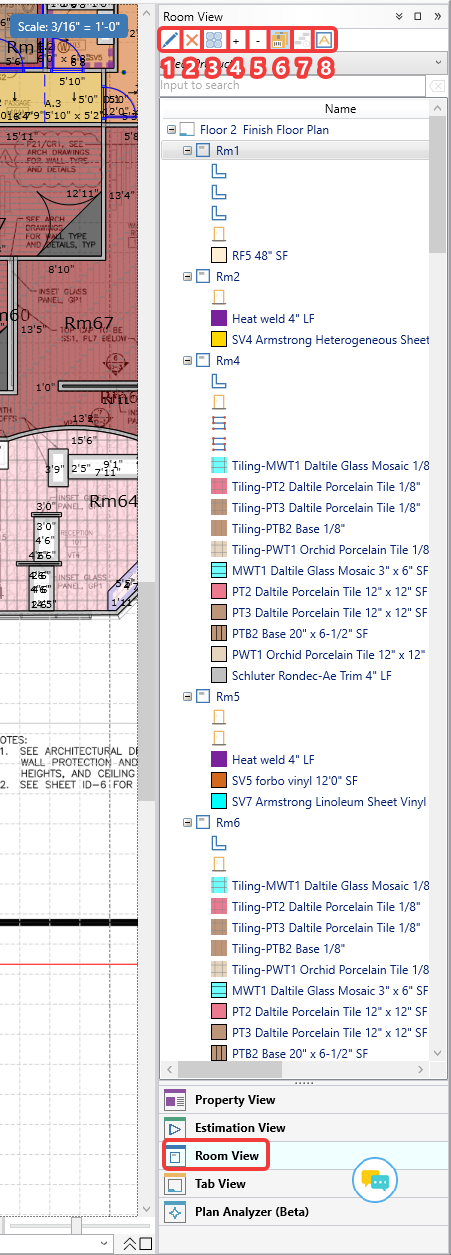
Room View is located at the bottom right of the Takeoff tab.
Double left click the button to open the panel.
Select a room in the list to have all the buttons light up and be selectable.
1. The pencil (edit) button allows for renaming the selected room or tab.
2. The red X (delete) button deletes the selected tab, phase, room or products.
3. The select and pan button selects and pans the room selected on the list to the center of the takeoff screen.
4. The plus (expand) button displays line items under rooms.
5. The minus (collapse) button hides line items under rooms.
6. The yellow accordion (products) button populates a dropdown menu to display products under rooms.
7. The button with ascending steps (phases) enables phase view.
8. The A (trade symbol) button selects trade symbols and highlights them on the diagram (when there is OCR text). The text for the rooms on the plan will highlight in the selected color.
Double left click the button to open the panel.
Select a room in the list to have all the buttons light up and be selectable.
1. The pencil (edit) button allows for renaming the selected room or tab.
2. The red X (delete) button deletes the selected tab, phase, room or products.
3. The select and pan button selects and pans the room selected on the list to the center of the takeoff screen.
4. The plus (expand) button displays line items under rooms.
5. The minus (collapse) button hides line items under rooms.
6. The yellow accordion (products) button populates a dropdown menu to display products under rooms.
7. The button with ascending steps (phases) enables phase view.
8. The A (trade symbol) button selects trade symbols and highlights them on the diagram (when there is OCR text). The text for the rooms on the plan will highlight in the selected color.