How to use Markups in MeasureSquare Stone
This article explains how to use the Markup tools in MeasureSquare Stone
Highlighter
Step 1. Click the top half of the HGL button to select the highlighter tool in its default state
Step 2. (optional) To customize it, click the arrow button on the lower half of the button make your selections from the provided menu
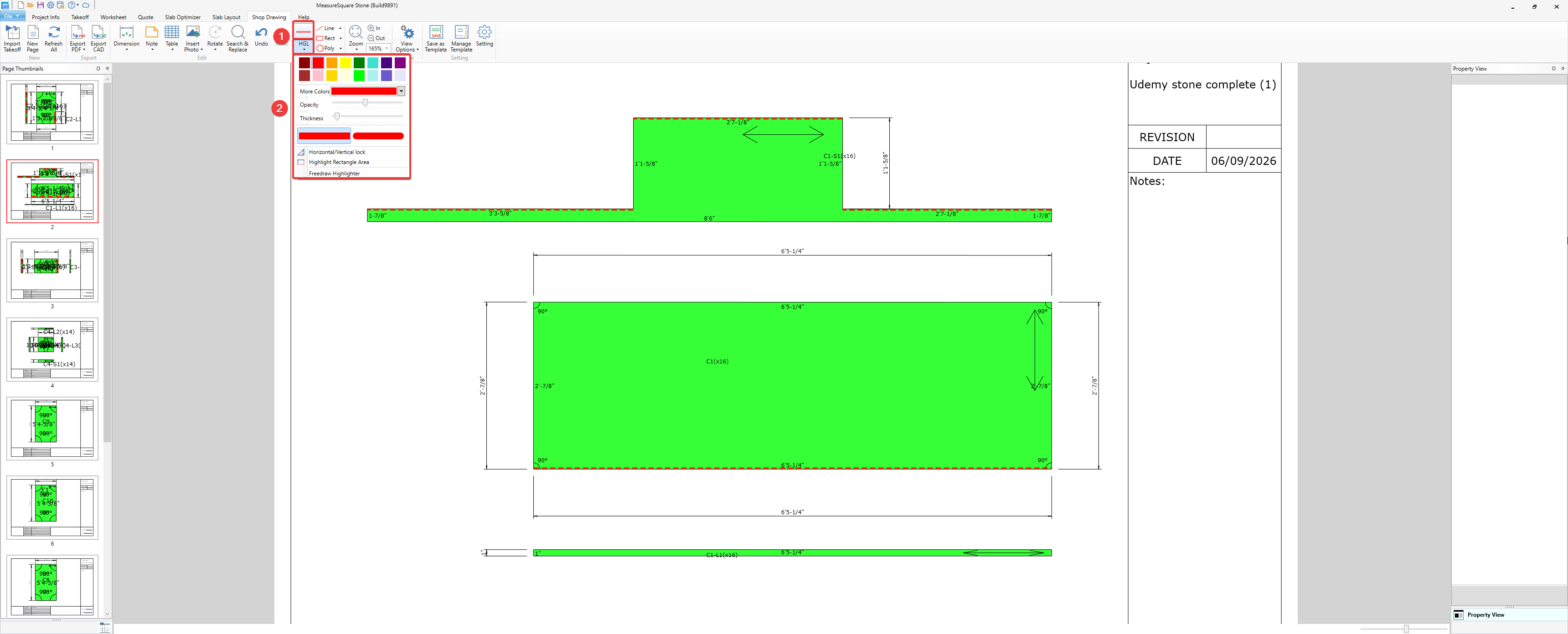
Step 3. Hold down the left click and drag to highlight
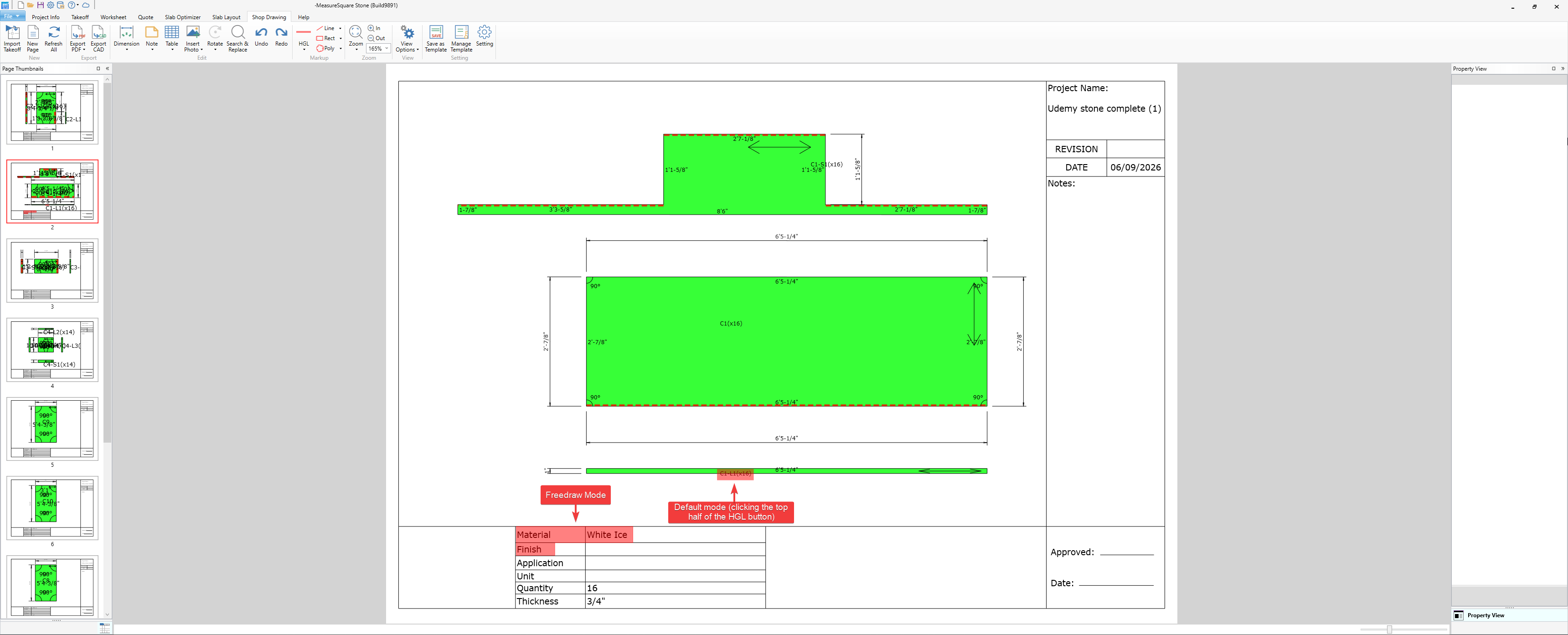
If you've selected the Freedraw Highlighter option in step 2, you can draw one line at a time by clicking and dragging your mouse the same way you would with the Draw tool
Line
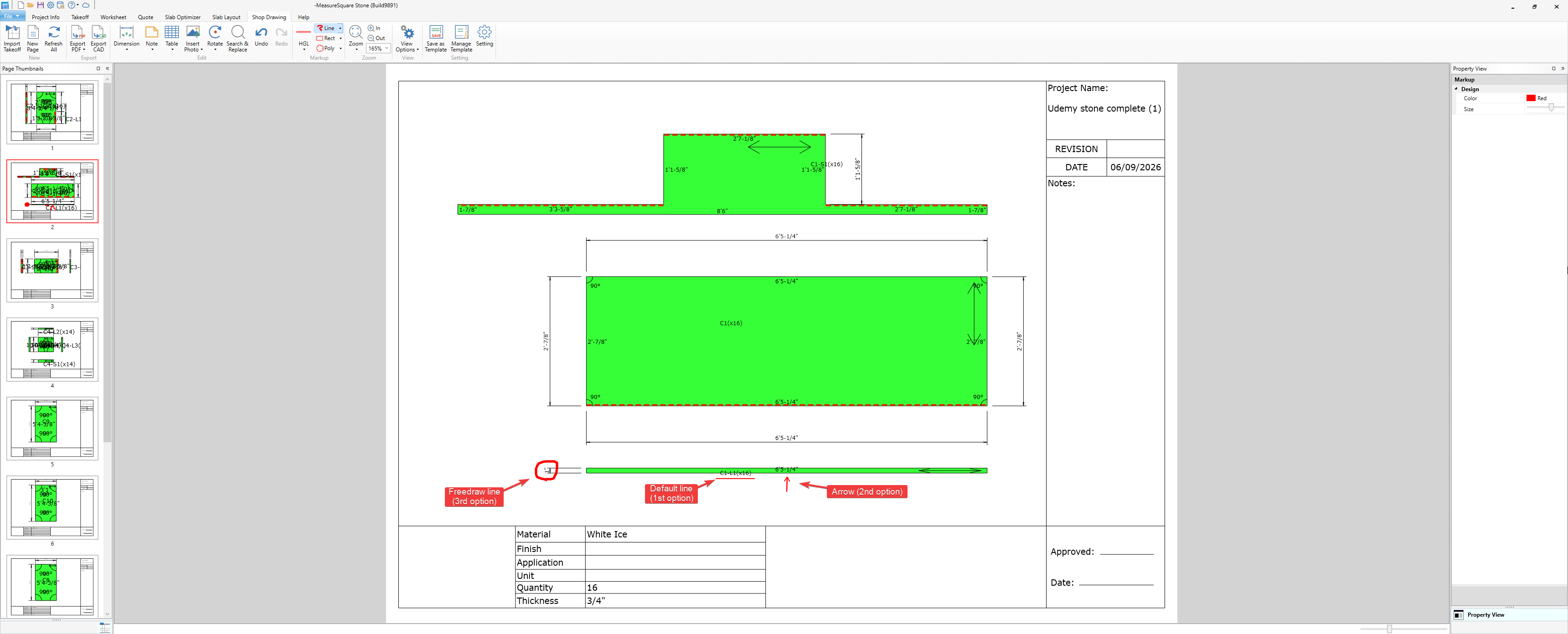
Step 1. Click the Line button to select it in it's default/preset state
Step 2. (optional) To customize it, click the right pointing arrow button to the right of it

Step 3. Click and drag to apply the selected option
Cloud
Step 1. Click the cloud button to select it
Step 2. (optional) Click the arrow button to the right of it to customize it
Highlighter
Step 1. Click the top half of the HGL button to select the highlighter tool in its default state
Step 2. (optional) To customize it, click the arrow button on the lower half of the button make your selections from the provided menu
Step 3. Hold down the left click and drag to highlight
If you've selected the Freedraw Highlighter option in step 2, you can draw one line at a time by clicking and dragging your mouse the same way you would with the Draw tool
Line
Step 1. Click the Line button to select it in it's default/preset state
Step 2. (optional) To customize it, click the right pointing arrow button to the right of it
Step 3. Click and drag to apply the selected option
Cloud
Step 1. Click the cloud button to select it
Step 2. (optional) Click the arrow button to the right of it to customize it
Step 3. Click and drag to apply it
If you need further assistance, contact MeasureSquare Customer Support at +1-626-683-9188 or email support@measuresquare.com.