How to insert and format Macros, Tables and Photos for Shop Drawings in MeasureSquare Stone
This article will show you how to insert and format Macros, Tables and Photos for Shop Drawings in MeasureSquare Stone.
Inserting Macros
Step 1. Right click a cell
Step 2. Hover over Insert Macro
Step 3. Make your selection from the expanded menu
Formatting Tables
Step 1. Click the Table button on the toolbar to format a table, or the down arrow on the lower half of the button to import a table from Excel
Step 1. Click the Table button on the toolbar to format a table, or the down arrow on the lower half of the button to import a table from Excel
Step 2. Fill out the boxes/make your selections to format the table accordingly
Step 3. Hover and left click to place and insert the table
Inserting Photos
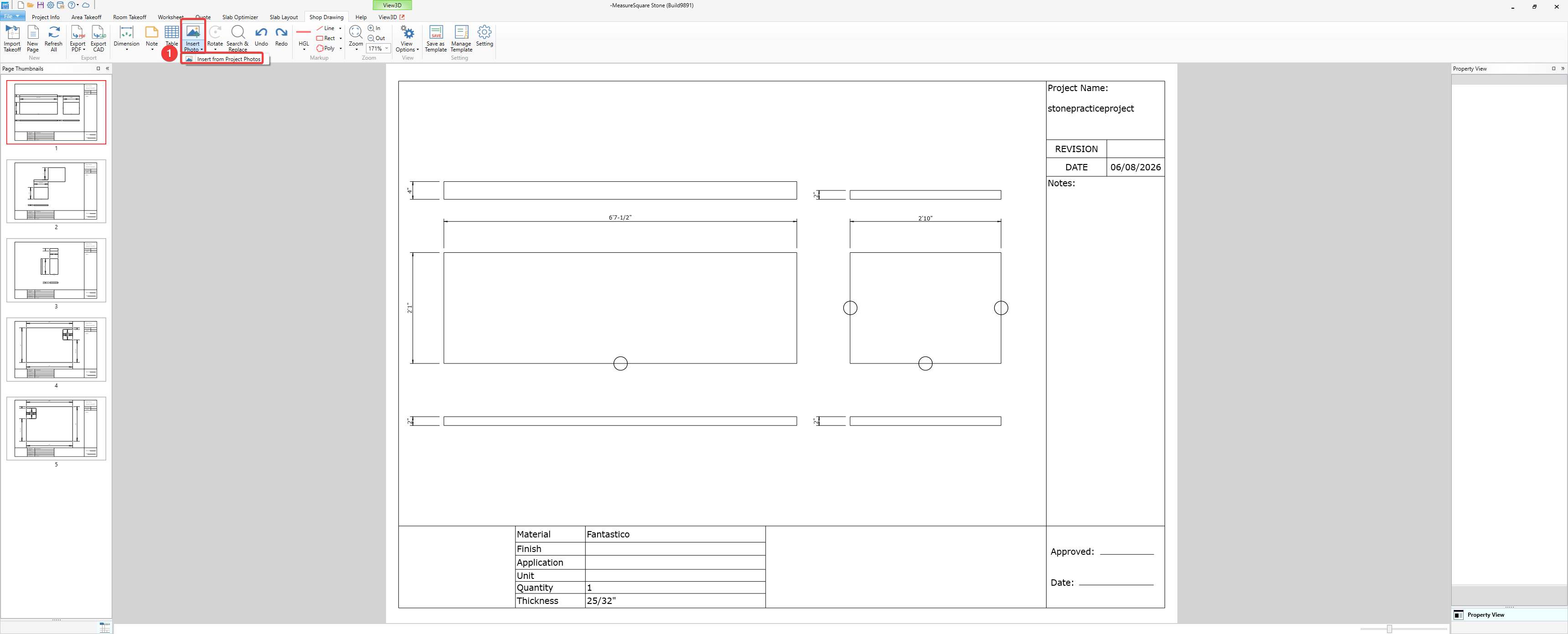
Step 1. Click Insert Photo, or click the lower half of the button to select Insert from Project Photos
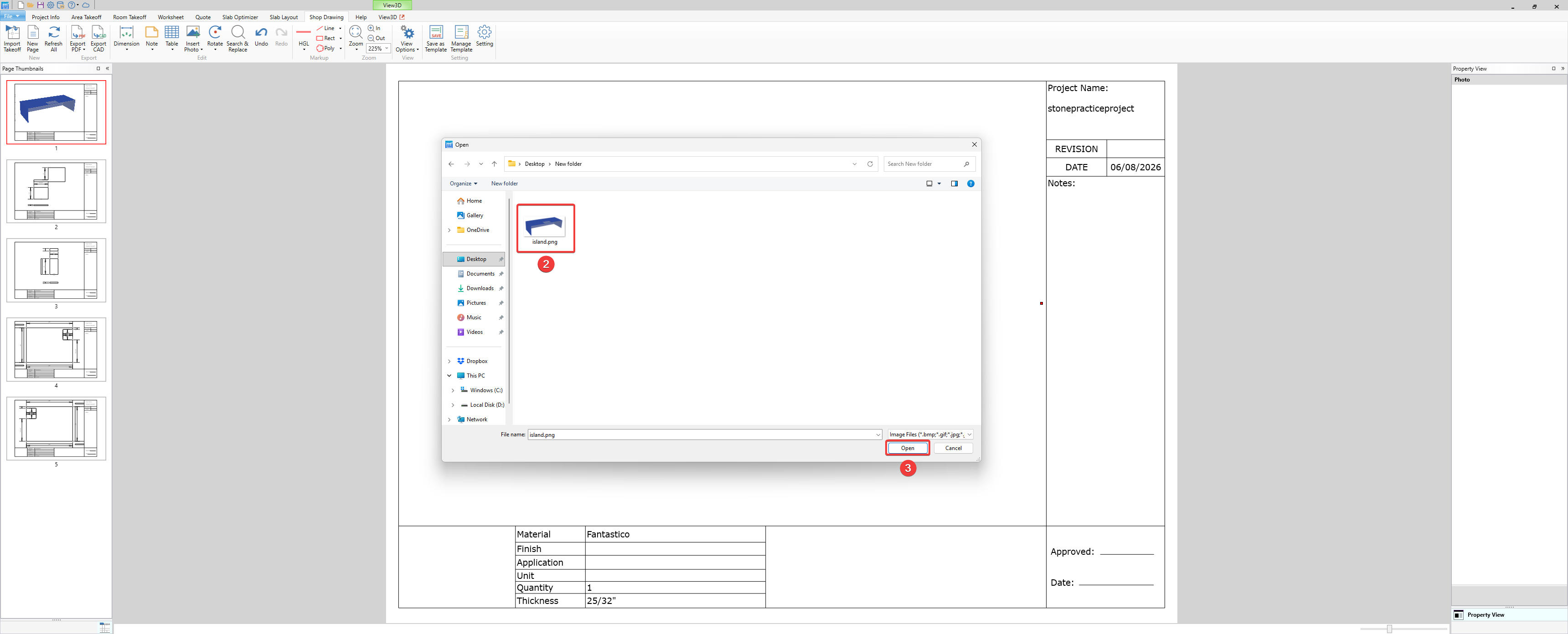
Step 2. Select the photo
Step 3. Click Open
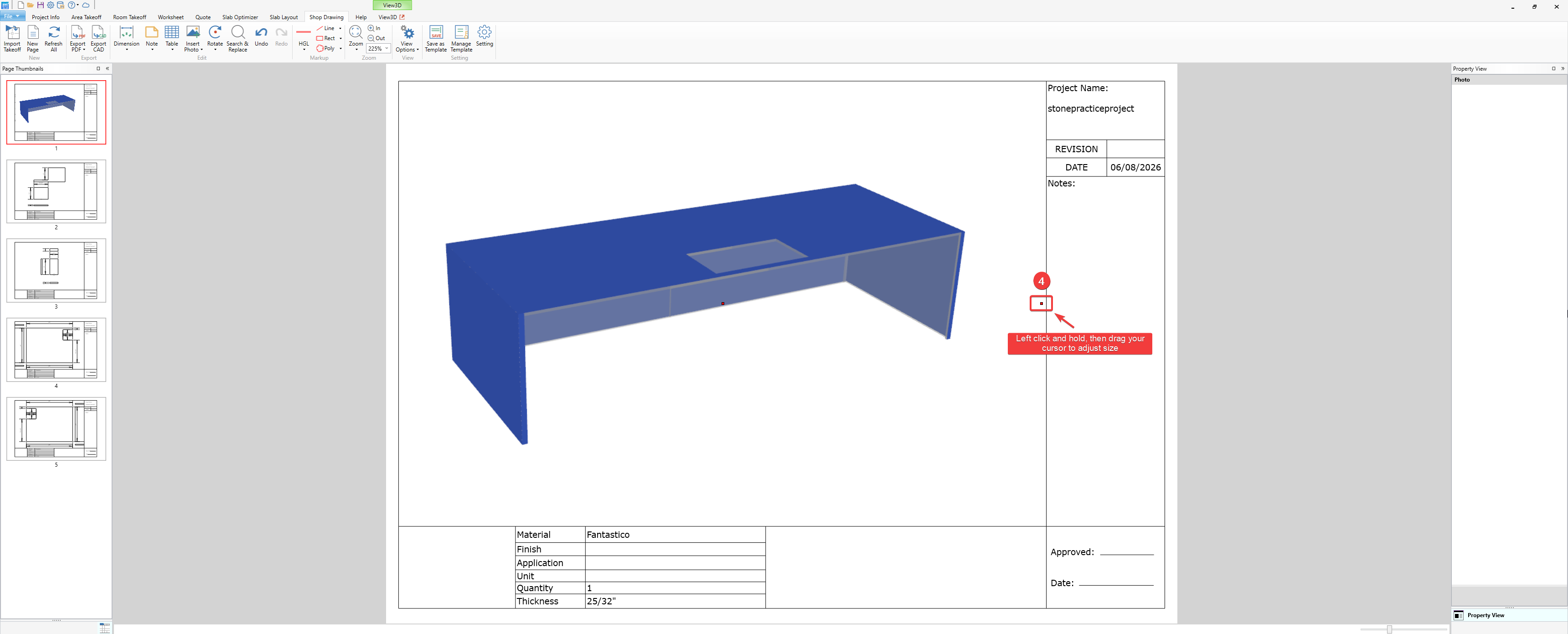
Step 4. Click and drag the handle on the right to adjust the size of the photo
If you need further assistance, contact MeasureSquare Customer Support at +1-626-683-9188 or email support@measuresquare.com.
Step 1. Click Insert Photo, or click the lower half of the button to select Insert from Project Photos
Step 2. Select the photo
Step 3. Click Open
Step 4. Click and drag the handle on the right to adjust the size of the photo
If you need further assistance, contact MeasureSquare Customer Support at +1-626-683-9188 or email support@measuresquare.com.