How to Create a Mosaic Tile Pattern on MeasureSquare 8
This article will show you how to create a mosaic tile pattern on MeasureSquare 8
Mosaic tile is sold by the sheet. Follow the steps below to set up the product and apply it:
Step 1. Create a Tile Product (use the top blue plus button to save to the database, or the bottom blue plus button to save it only to the current project).
Label the product, select Tile for the product Type, and click OK.
Step 2. Enter the product specs
Enter the dimensions of the sheet into the Width and Length fields, as well as any other details you would like to include (e.g. Calc Method, Thickness, Pricing, Texture, then click Save.
Enter the dimensions of the sheet into the Width and Length fields, as well as any other details you would like to include (e.g. Calc Method, Thickness, Pricing, Texture, then click Save.
Optional: To upload a texture image, click Set Texture on the window above.
A. On the product texture window, click Import Image(s), then select the image on the next window and click Open.
B. Use the red square handles to select the part of the image to be used.
C. Click Set Texture & Preview, then Save.
D. Click Save on the Project Items window as well.
A. On the product texture window, click Import Image(s), then select the image on the next window and click Open.
B. Use the red square handles to select the part of the image to be used.
C. Click Set Texture & Preview, then Save.
D. Click Save on the Project Items window as well.
Step 3. Drag and drop the product to the desired location
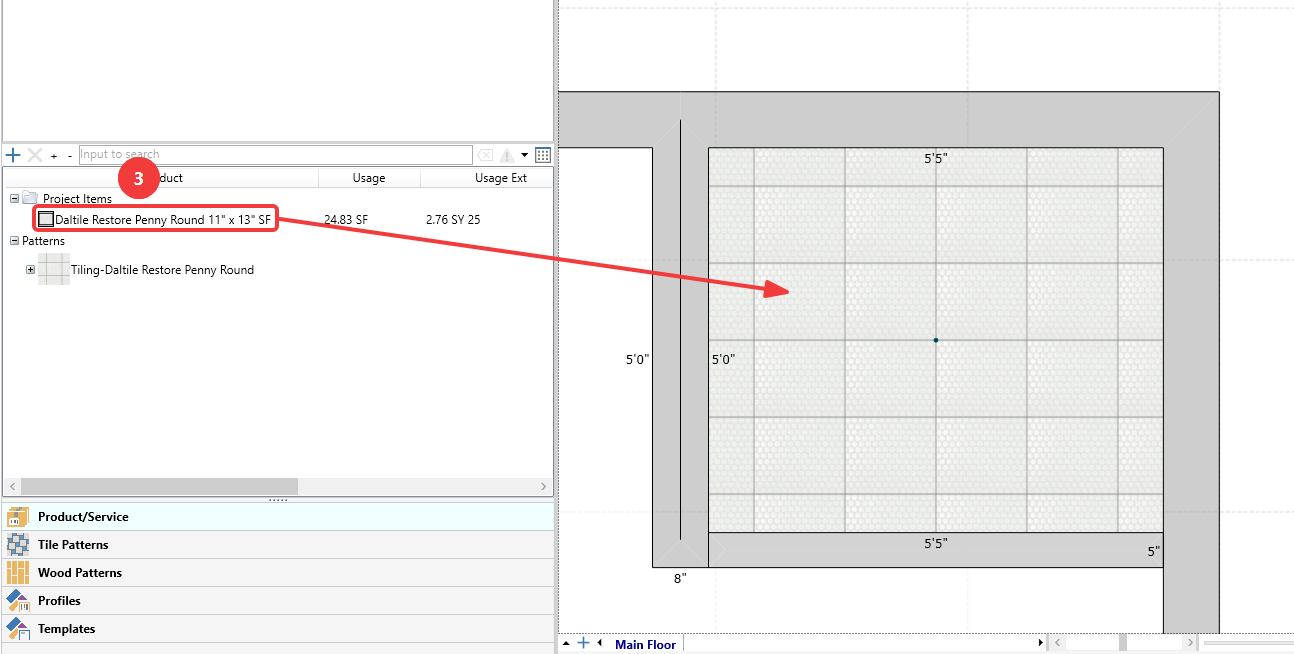
Applying the tile product will create a pattern under Project Items.
Applying the tile product will create a pattern under Project Items.