How to Create Alternates on MeasureSquare 8
This article explains how to create alternates on MeasureSquare 8
Step 1. Set up the alternate products
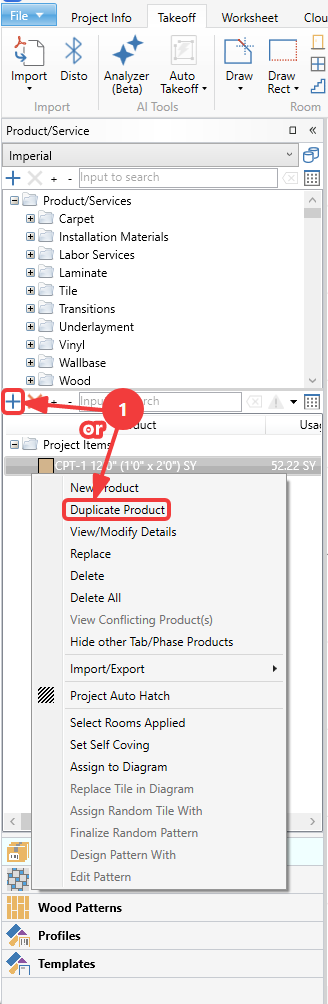
-If using completely different products for the alternates, either create the new products, or send existing ones to your Project Items list by right clicking them from the Products/Services folder and selecting Add to Project Items List.
-If using the same products and changing the product details, right-click the products and select Duplicate Product, then double click the duplicates to edit the details.
Step 2. Create additional tabs for alternate options
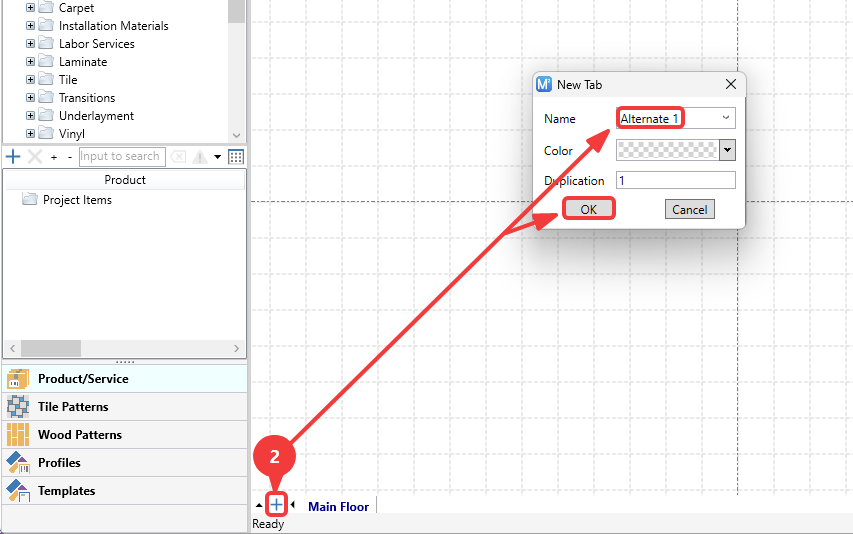
Click the blue plus button at the bottom left of the takeoff area to create a new tab for each alternate option, then label them.
Step 3. Copy/Paste the diagram from the first tab to the new ones
Press Ctrl+A to select everything on the original tab, then Ctrl+C to copy everything
Click the new tabs and press Ctrl+V, then click to paste everything over
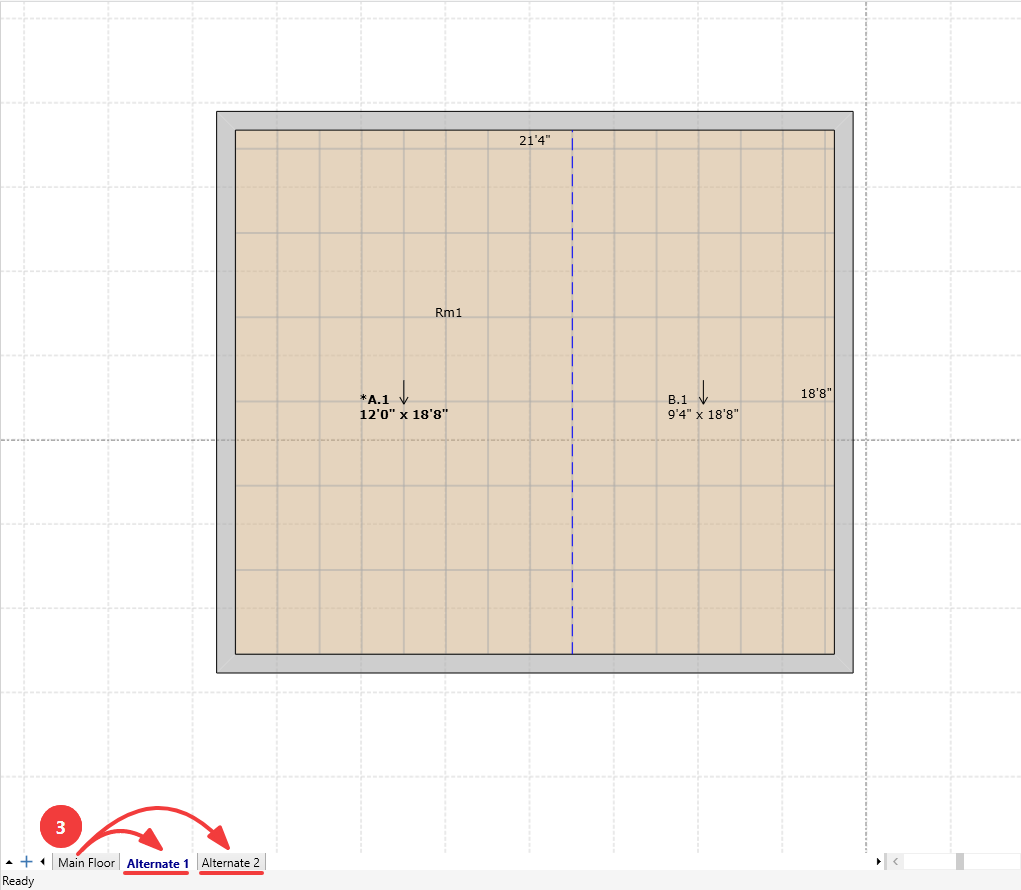
Step 4. On each new tab, right click the original product and select "Select Rooms Applied", then drag the alternates over to replace the originals
Step 1. Set up the alternate products
-If using completely different products for the alternates, either create the new products, or send existing ones to your Project Items list by right clicking them from the Products/Services folder and selecting Add to Project Items List.
-If using the same products and changing the product details, right-click the products and select Duplicate Product, then double click the duplicates to edit the details.
Step 2. Create additional tabs for alternate options
Click the blue plus button at the bottom left of the takeoff area to create a new tab for each alternate option, then label them.
Step 3. Copy/Paste the diagram from the first tab to the new ones
Press Ctrl+A to select everything on the original tab, then Ctrl+C to copy everything
Click the new tabs and press Ctrl+V, then click to paste everything over
Step 4. On each new tab, right click the original product and select "Select Rooms Applied", then drag the alternates over to replace the originals
Step 5. Estimate by tab
Click the down arrow button to the right of the gear button on the Estimate group of the ribbon.
Hover over "Estimate By" and select tab.
Step 6. Print each tab separately
Click File>Print (or press Ctrl+P) then click OK on the next window.
You will now be able to view the print preview.
Note: Factors such as paper size, orientation, zoom, and scale will impact how the diagrams fit into each page.