How to assign Room Names with OCR in MeasureSquare Stone
This article will show you how to assign room names using the OCR (Optical Character Recognition) feature in MeasureSquare Stone.
Assign Room Names with OCR While Drawing:
Step 1: Enable Image OCR
Right-click [1] on the blueprint image in your project and select Image OCR (Beta) or Project Images OCR (Beta) [2] from the dropdown menu. This will process the OCR on the selected plan images.
Step 2: Activate "Select PDF Text as Room Name"
Navigate to the Takeoff tab in the toolbar. Under the Draw dropdown menu [1], check the option Select PDF Text as Room Name [2]. This enables the OCR feature to automatically assign room names based on the text in the blueprint.

Note: To turn off the pop-up for room naming. Uncheck this selection from step 2
---
Step 3: Draw the Room
Start drawing, as you draw the OCR will detect the text within the room when you close it. The detected text will appear in a selection box, you then can select the text in the proper order then assign your selections as the rooms name by clicking OK.
Rename Rooms with OCR After Drawing:
Step 1: Activate "Rename Rooms with PDF Text"
After running the Image OCR on the plan(s) navigate to the Takeoff tab in the toolbar. Under the Draw dropdown menu [1], check the option Rename Rooms with PDF Text [2]. This enables the OCR feature to read the text in the blueprint and assign it to the room that encompasses the text.
Step 2: Select the Text for the New Room Name
Left click each text, or left click and drag a selection box around the text inside of a room that you want to be used as the room's name [1].

You are able to rename multiple rooms at the same time by selecting text in multiple rooms
The order each piece of text is selected is the order they will appear in the name.
Step 3: Close the Tool to Rename
When you are finished selecting text, Right Click and all the selected text will be applied to their corresponding rooms.
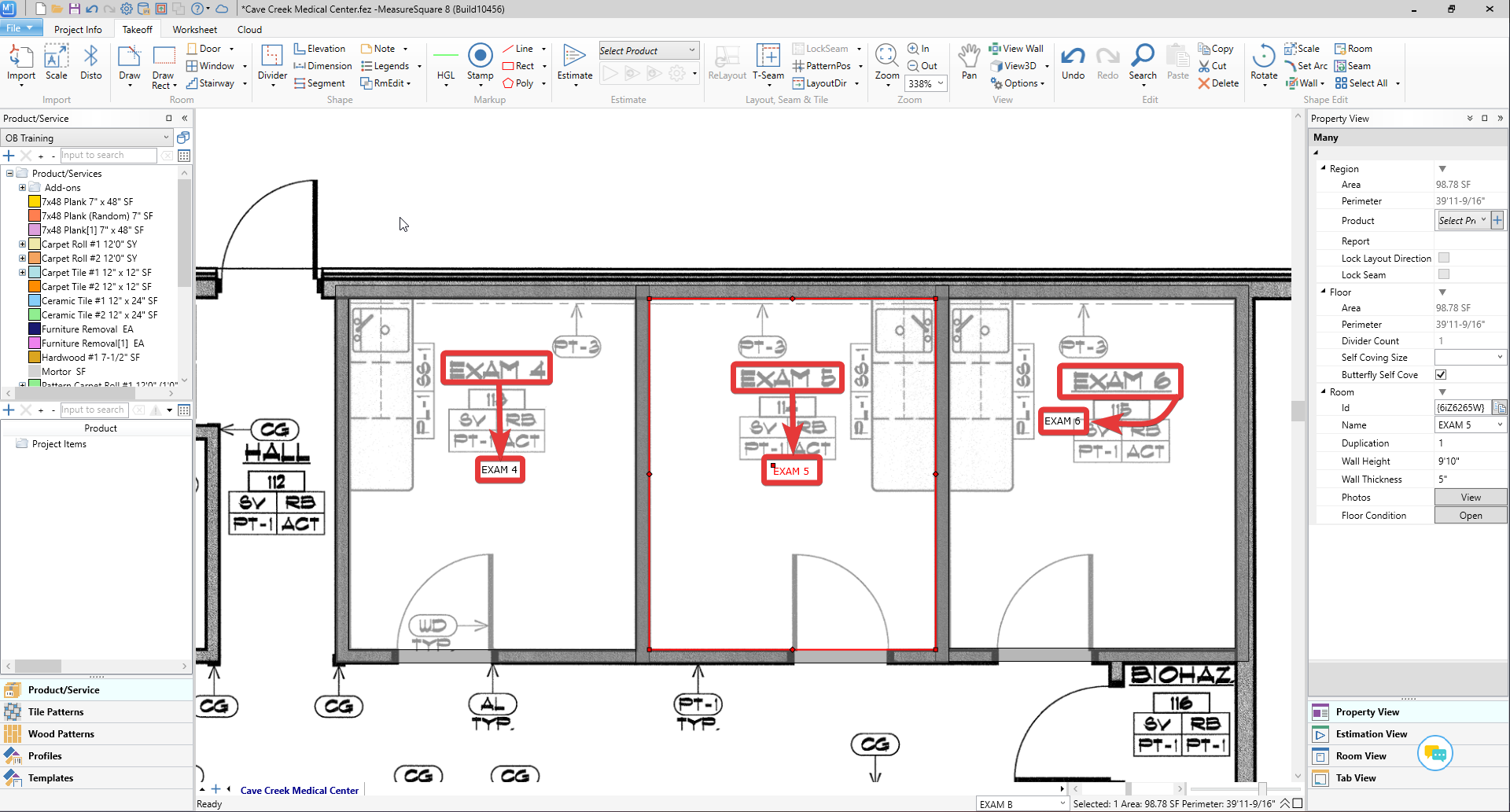
When you are finished selecting text, Right Click and all the selected text will be applied to their corresponding rooms.
For any further questions, please reach out to our Support team
Monday - Friday from 7:30am-4:30pm PST: (626) 683-9188 ext. 3
All Hours: support@measuresquare.com