How do I Start Second Instance/Window of MeasureSquare Stone?
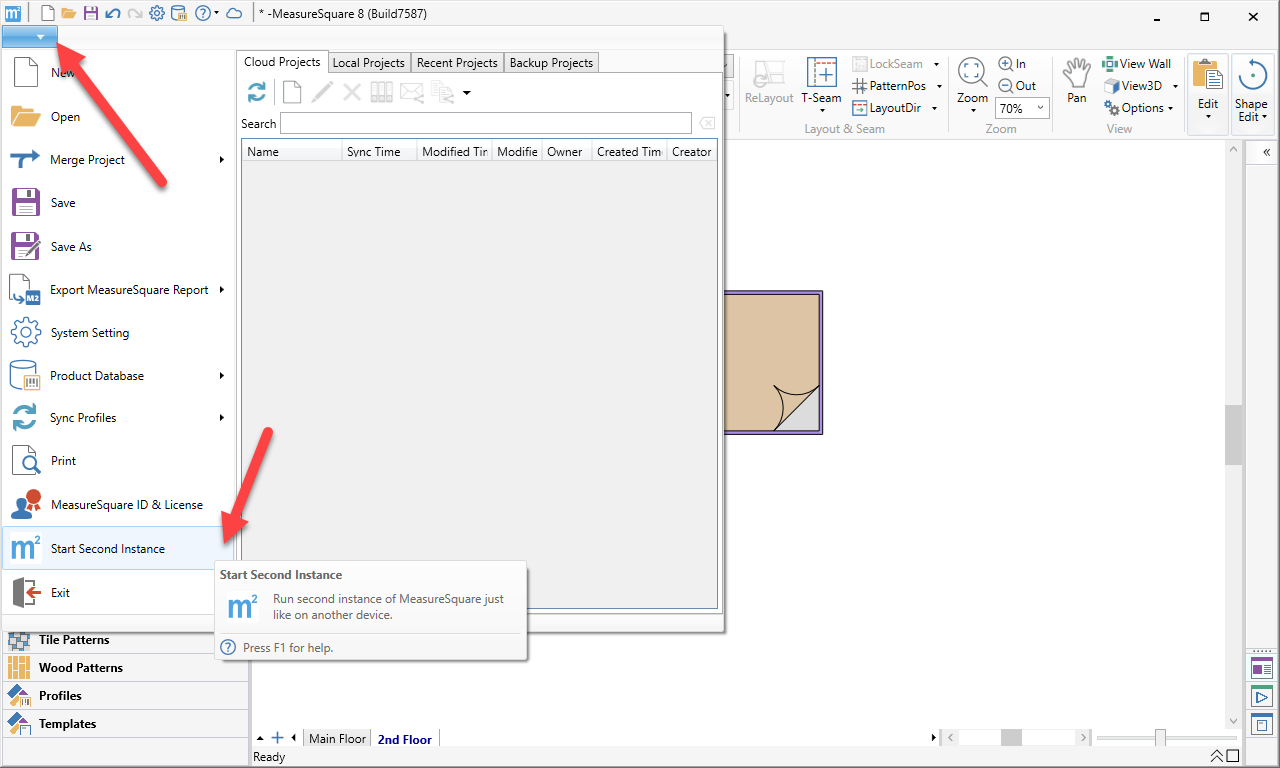
This article will show you how to use the second instance feature. MeasureSquare Stone allows you to open 2 diagram windows so that you may work on 2 separate projects at the same time!
Step 1: Click on the File tab and select Start Second Instance. You can now work on a second project simultaneously.
Related Articles
How do I Start Second Instance on MeasureSquare 8?
This article will show you how to use the second instance feature. MeasureSquare 8 allows you to open 2 diagram windows so that you may work on 2 separate projects at the same time! This article applies to MeasureSquare 8. Version: All builds of ...
How to load data into the Slab Optimizer to generate the slab cuts for MeasureSquare Stone?
In this article, we will walk you through how to load data into the slab optimizer tab to generate the slab cuts report. This article applies to MeasureSquare Stone Desktop Step 1: Click on the Worksheet Tab > Click New to generate a worksheet Step ...
Why the product details edit window disappear in MeasureSquare Stone
In this article, you will learn how to resolve the issue where your product details pop up window does not appear when you are trying to update a product in either your product catalog or assignment list/project items. If you run into the scenario ...
How to sign up for a free trial with Measuresquare Stone
In this article we will include the steps for starting your free 14-day Trial period This article applies to Measuresquare Stone and Measuresquare Stone and Tile Download a 14-day Trial from here. After the download is complete, double-click the ...
Creating a 3D Snapshot in MeasureSquare Stone
This article will provide a guide on how to create a 3D snapshot into Shop Drawing. Before shooting a 3D snapshot of the slab, a KB article will be provided on how to display an Image of your Slab (Cut to Size product): How to Display an Image of the ...